
When participating in a NetRoadshow Conferencing event—whether as a presenter or an attendee, you may encounter a prompt from your browser asking for permission to access your device’s microphone.
The following instructions are applicable across operating systems—Windows, macOS and Linux. Any variations between web browsers are included.
All steps below assume you are connected to a NetRoadshow-hosted event via web browser.
Click the links below to skip ahead to your web browser or to find additional troubleshooting.

First-Time Access
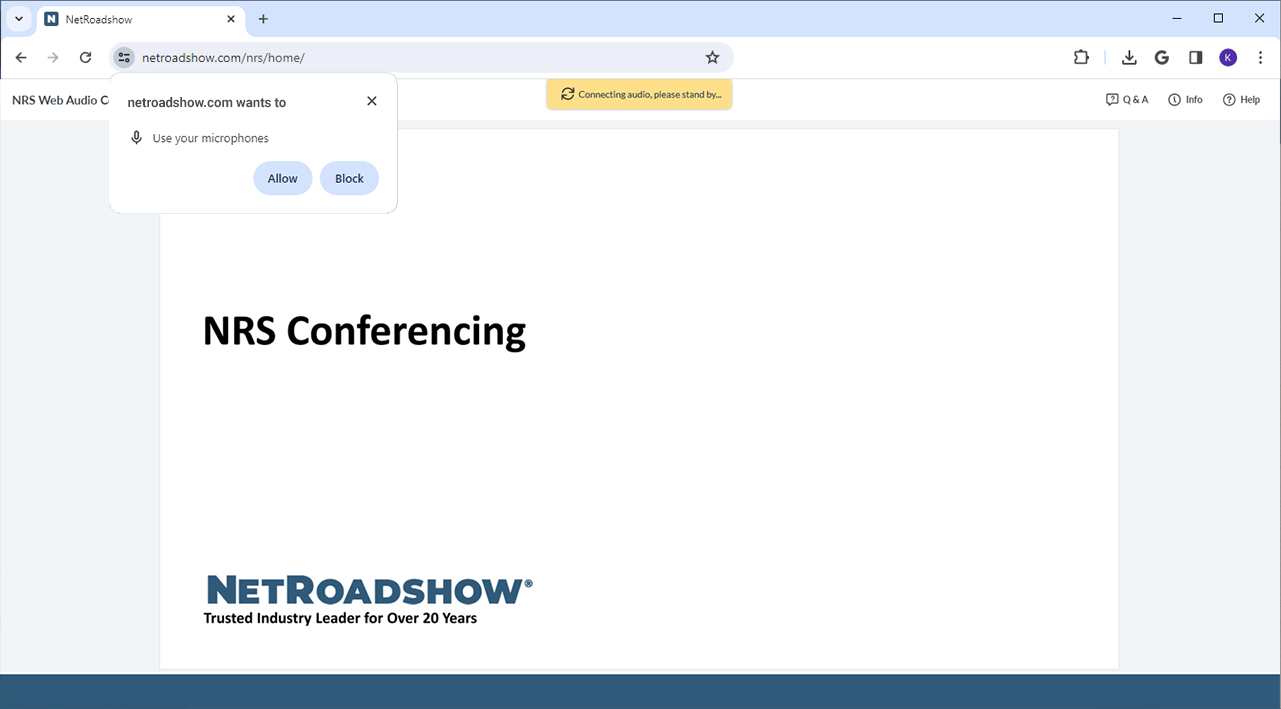
When the dialog box appears asking to grant microphone permission, select “Allow.”
Changing Microphone Permissions

First-Time Access
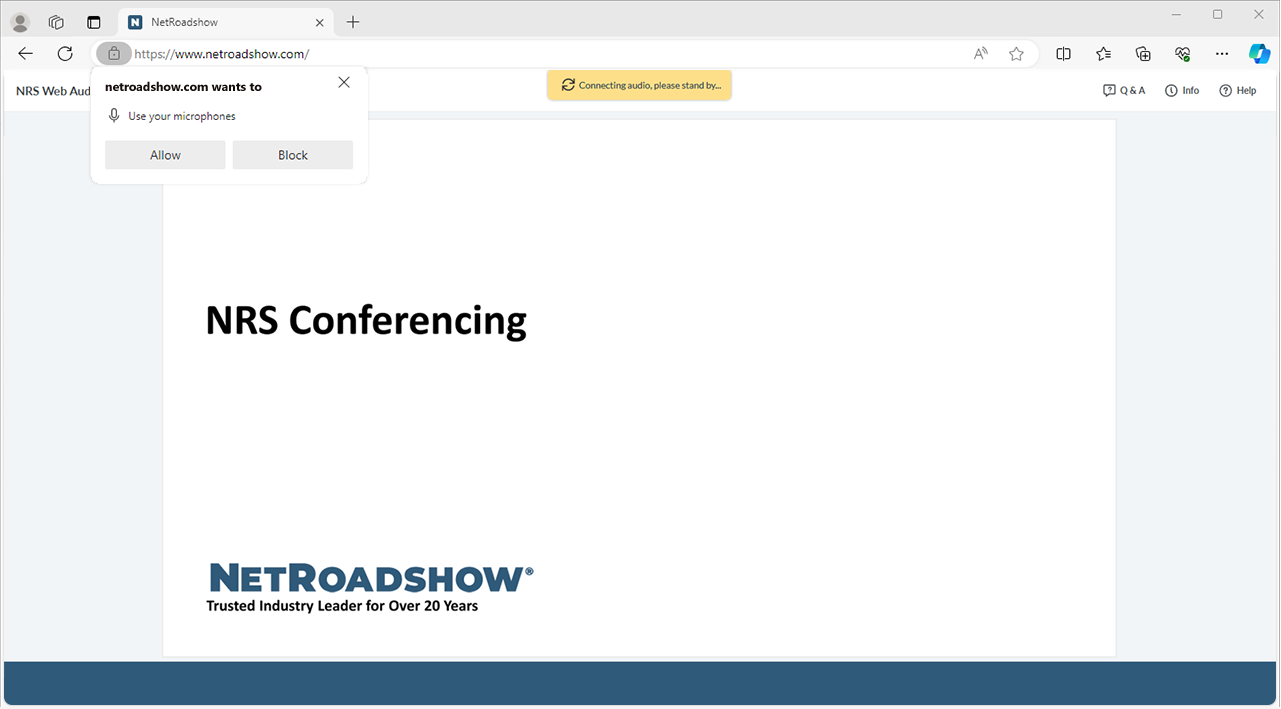
When the dialog box appears asking to grant microphone permission, select “Allow.”
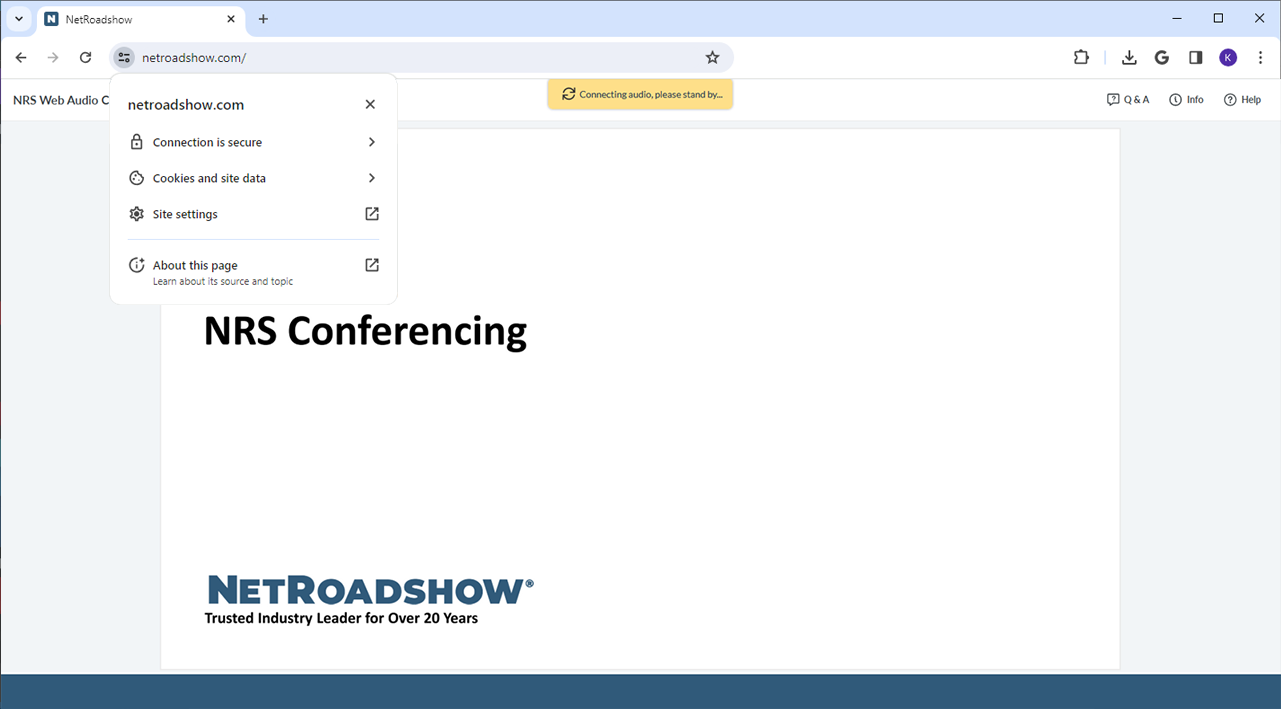
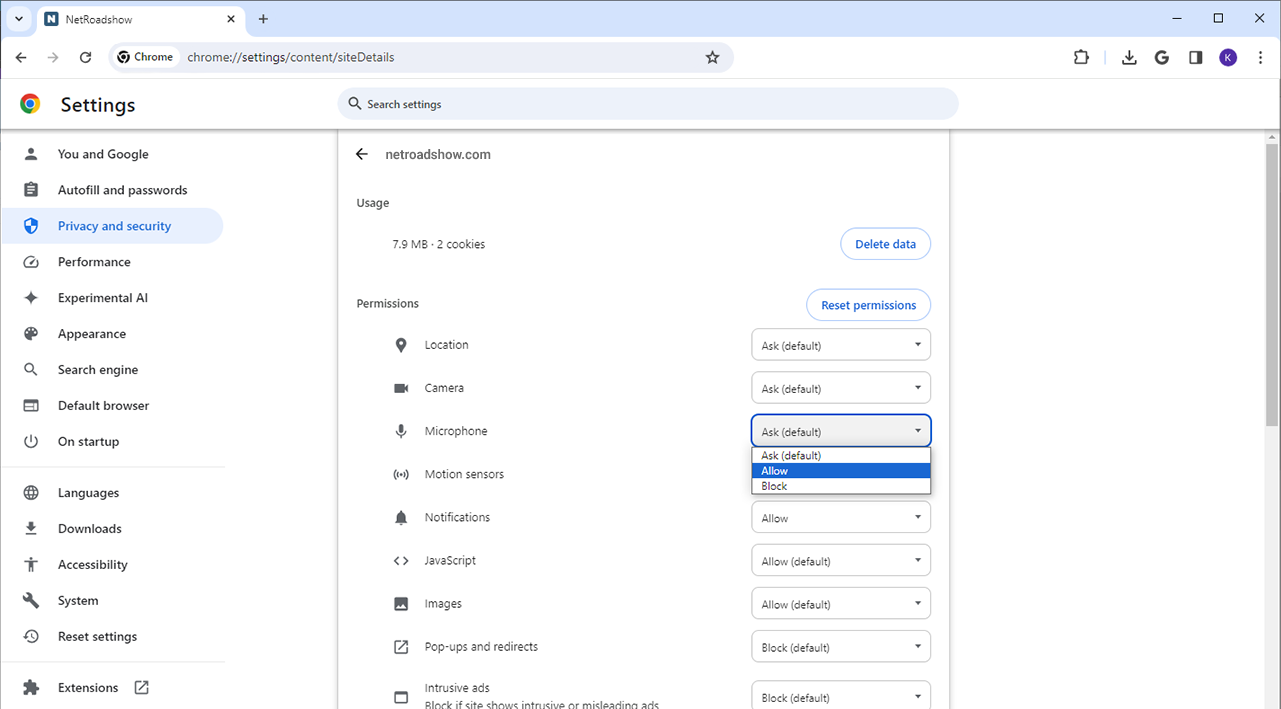
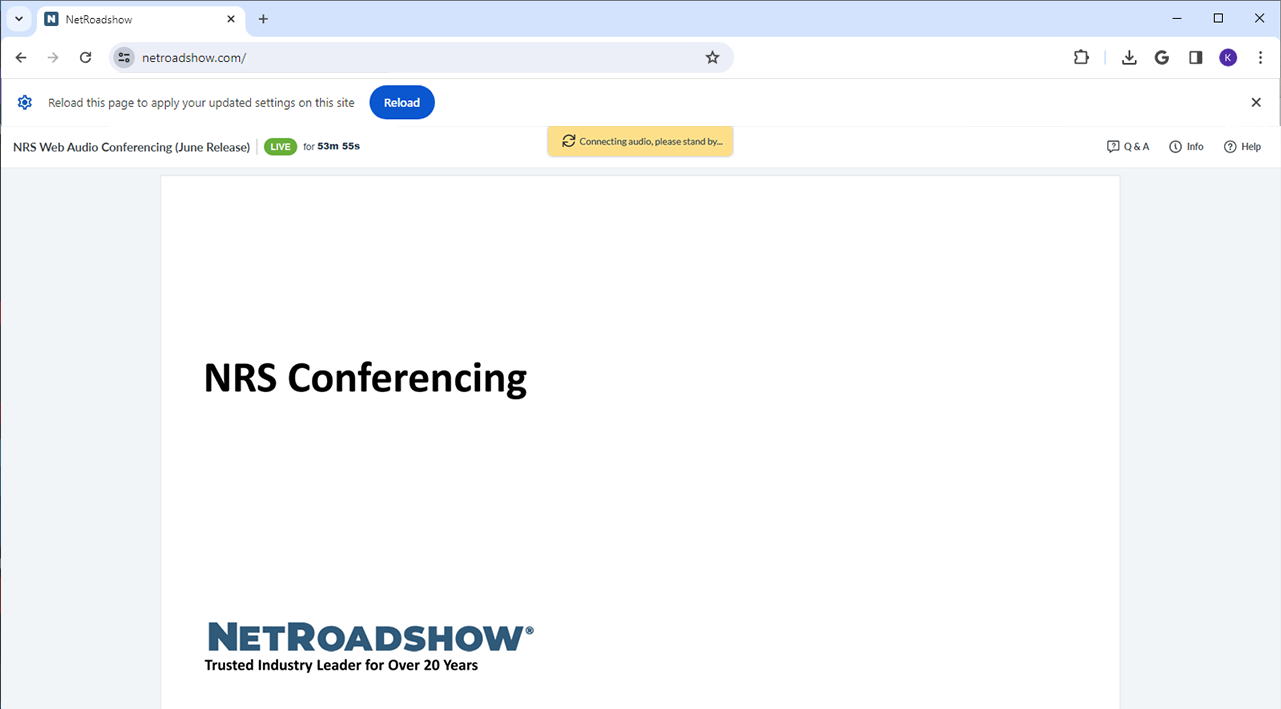
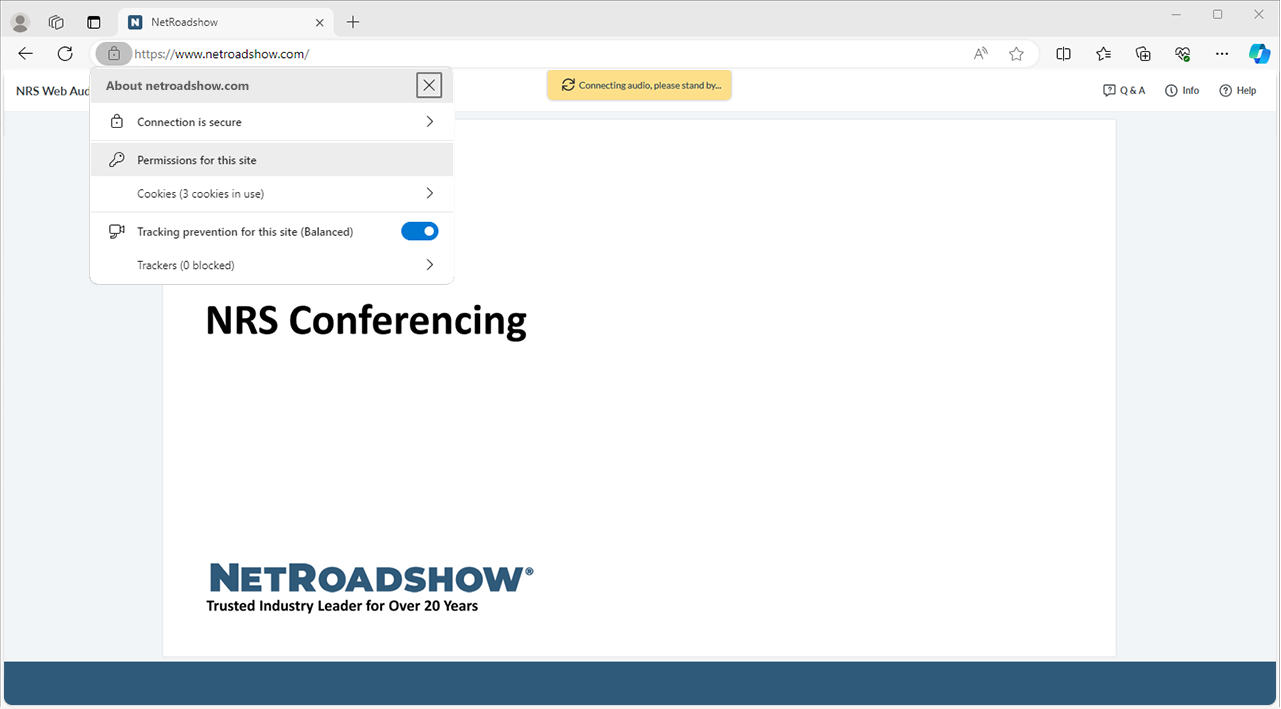
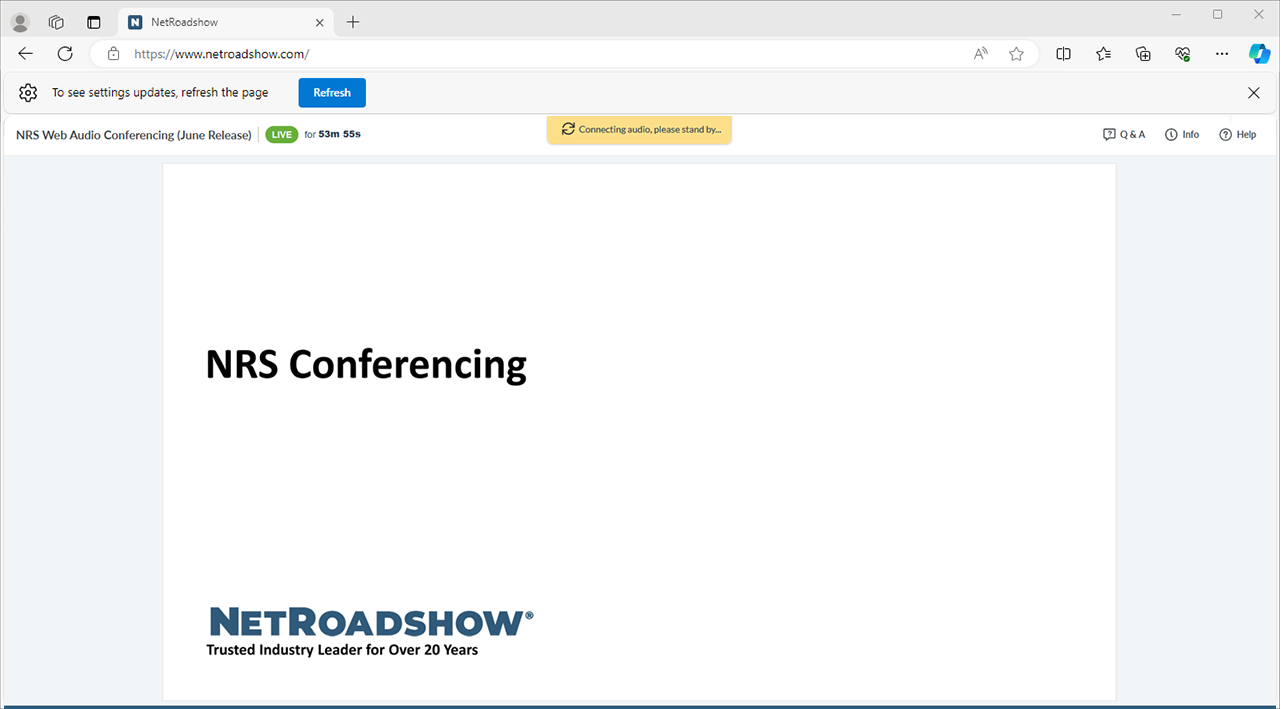
Changing Microphone Permissions


First-Time Access
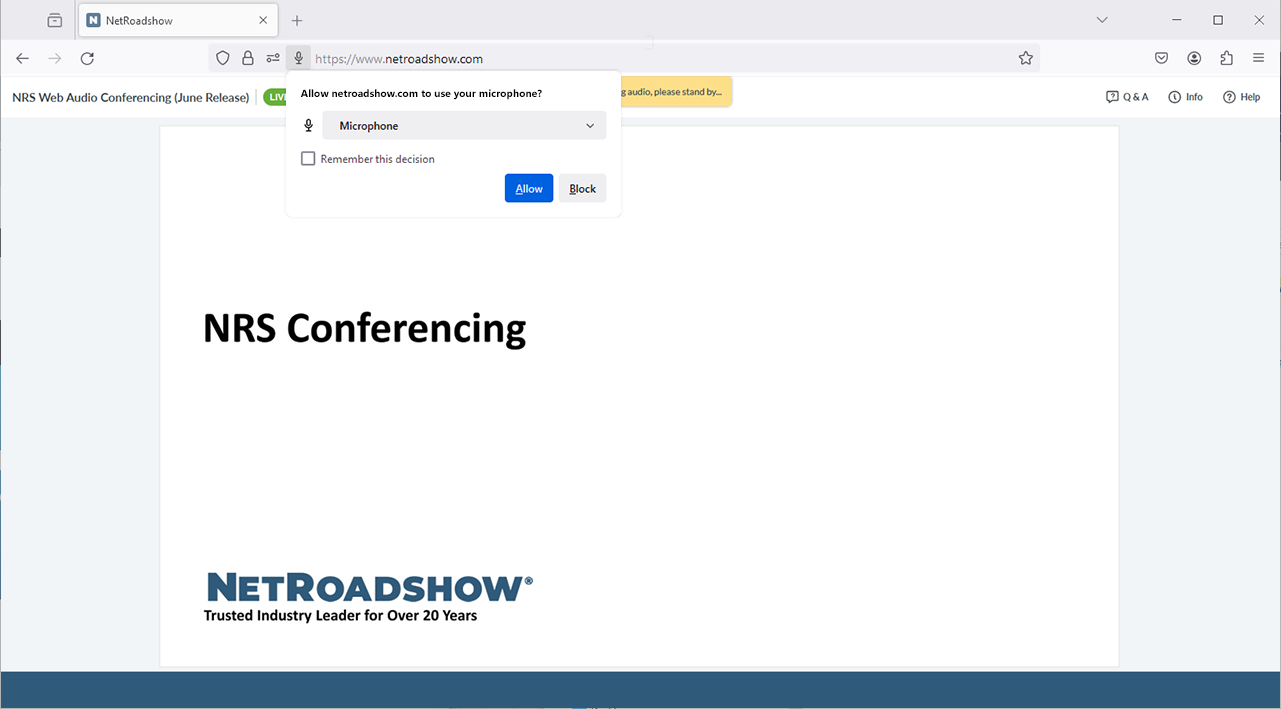
When prompted to grant microphone permission, choose “Allow.” Select the “Remember this decision” checkbox to save your setting for the future.
Changing Microphone Permissions
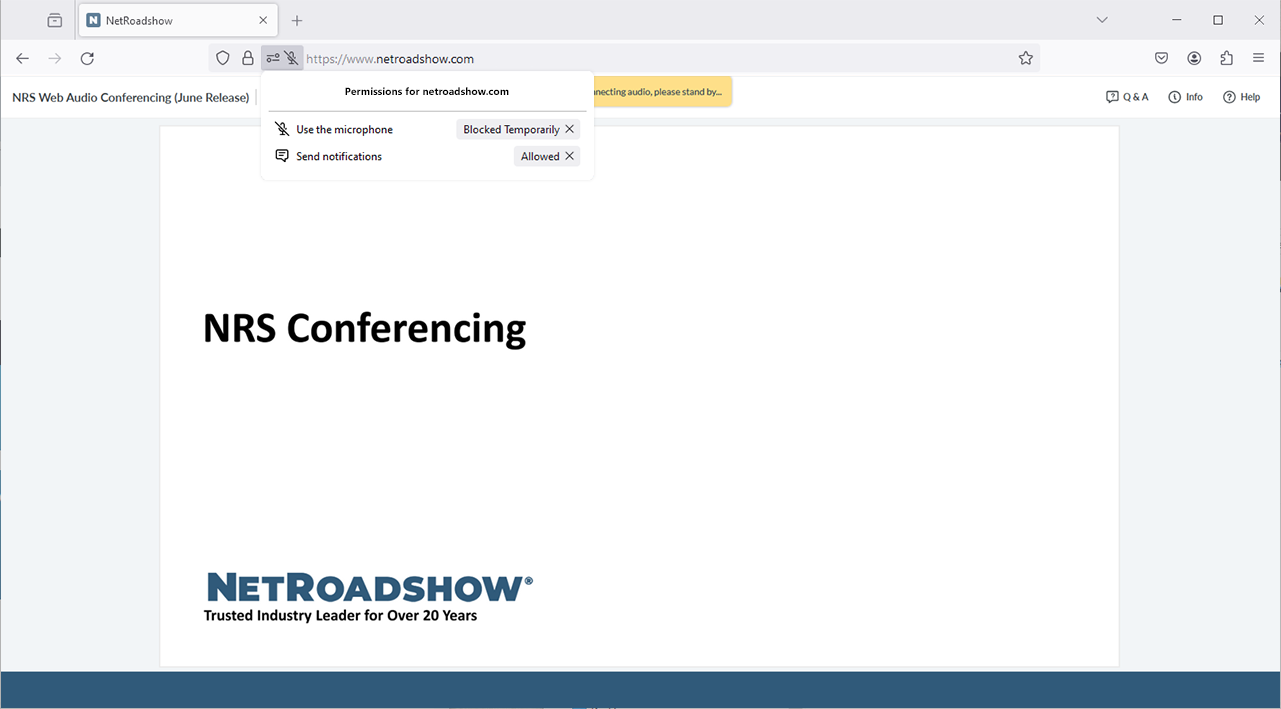

First-Time Access
When prompted to use your microphone, click “Allow."
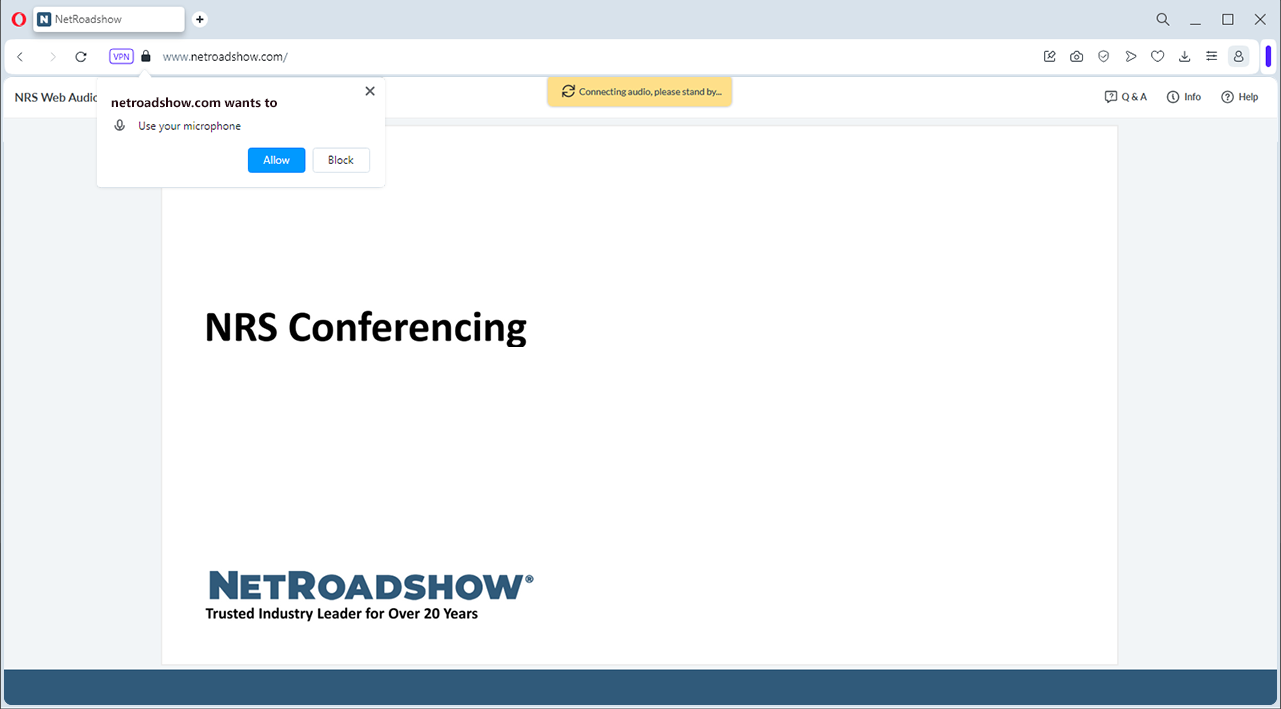
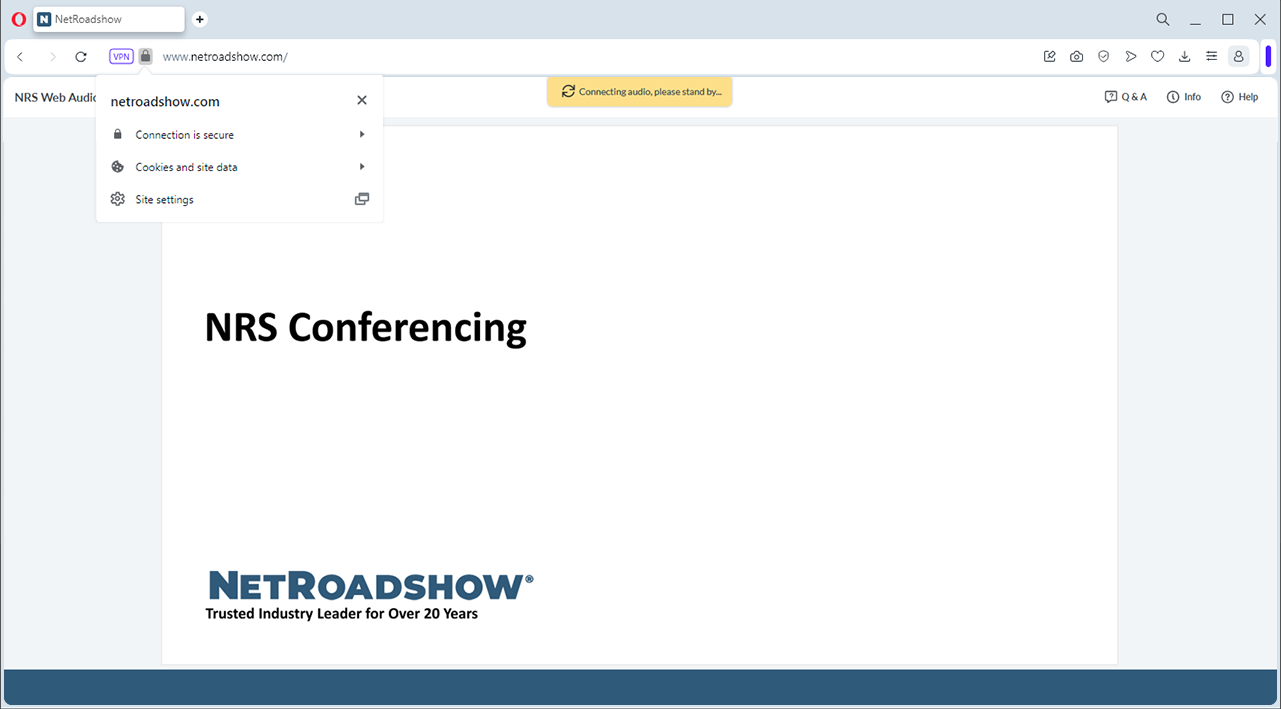
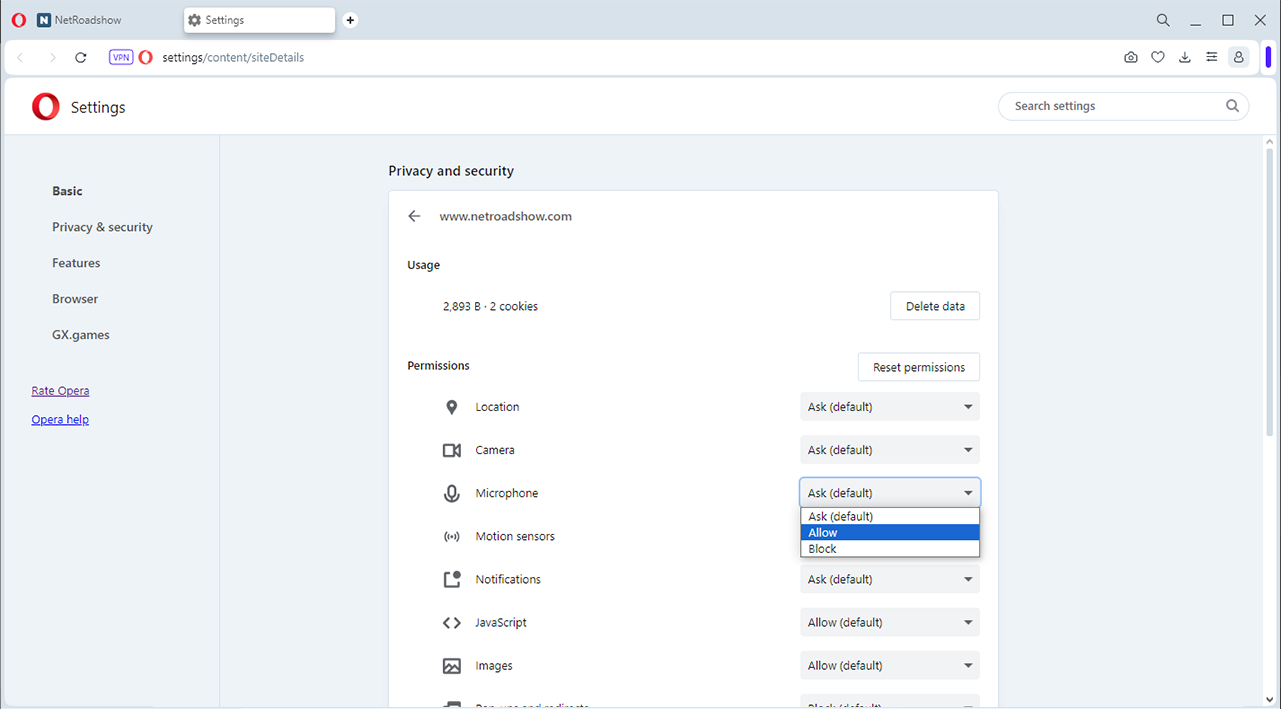
Changing Microphone Permissions
First-Time Access
When prompted to grant microphone permission, choose “Allow.” Select the “Remember this decision” checkbox to save your setting for the future.
Changing Microphone Permissions
Ensure you aren’t muted
Check your mic to see if it has a physical mute button, switch or other control (lift to mute).
Select a default microphone
Your system and browser have settings to define a default microphone. Ensure the proper mic is set for both. Additionally, check to see if audio recording levels are adequate.
Contact IT
Your organization may limit your ability to access certain settings. Please contact your IT administrator if you don’t have permission to change your settings.
Do you need more help with NetRoadshow Conferencing?
Contact our support team


